
I am familiar with Python, Java, Aws, Docker, Kubernetes, Terraform, CI/CD pipelines.
Package and Package Manager
In Linux, a package is like a box of toys. Imagine you want to play a game on your computer, but you don't have all the pieces. The package is like a box that contains all the pieces you need to play the game. Packages can contain all kinds of things, like programs, files, and settings.
A package manager is like a librarian who helps you find and check out the right box of toys. The package manager keeps track of all the boxes of toys, called packages, that are available for your computer. It helps you search for the right package and install it on your computer.
When you use a package manager, you can tell it what you want to do, like "install a new game" or "update an old program". The package manager will take care of finding the right package and installing it on your computer. It can also help you remove packages you don't need anymore.
Packages and package managers are like a way to keep your computer organized and make it easy to install and use new software.
Task 1: Installing docker and Jenkins using Package Manager.
Docker is a platform for developers and sysadmins to develop, deploy, and run applications with containers. Containers allow a developer to package up an application with all of the parts it needs, such as libraries and other dependencies, and ship it all out as one package.
- To install Docker we will use the following commands;
- Update the package index on your Ubuntu system:
sudo apt update
- Install the required packages to use Docker’s repository:
sudo apt install apt-transport-https ca-certificates curl gnupg-agent software-properties-common
- Add Docker’s official GPG key to your system:
curl -fsSL https://download.docker.com/linux/ubuntu/gpg | sudo apt-key add -
- Add the Docker repository to APT sources:
sudo add-apt-repository "deb [arch=amd64] https://download.docker.com/linux/ubuntu $(lsb_release -cs) stable"
- Update the package index again:
sudo apt update
- Install Docker Community Edition:
sudo apt install docker-ce docker-ce-cli containerd.io
- Verify that Docker is installed correctly by running the hello-world image:
sudo docker run hello-world
- To install Docker on CentOS, we will use the following command;
- Update your system's package index:
sudo yum update
- Install the required packages to use Docker's repository:
sudo yum install -y yum-utils device-mapper-persistent-data lvm2
- Add Docker's official GPG key to your system:
sudo yum-config-manager --add-repo https://download.docker.com/linux/centos/docker-ce.repo
- Install the latest version of Docker Community Edition:
sudo yum install docker-ce docker-ce-cli containerd.io
- Start the Docker service:
sudo systemctl start docker
- Verify that Docker is installed correctly by running the hello-world image:
sudo docker run hello-world
systemctl is a command used in Linux operating systems to control the state of the systemd system and service manager. It allows you to start, stop, restart, enable or disable system services, and get information about their status.
systemd is a system and service manager that is used by many Linux distributions. It is responsible for managing the system's services, daemons, and other processes, and is designed to be backwards-compatible with the traditional SysV init system. Systemd provides advanced features such as on-demand starting of daemons, socket-based activation, and parallelized service startup, among others.
Jenkins is an open-source automation server that helps to automate parts of the software development process. It can be used to automate building, testing, and deploying software, and provides a wide range of plugins that can be used to integrate with other tools and systems.
- To install jenkins on ubuntu 20.04
- Update the package index on your Ubuntu system:
sudo apt update
- Install Java on your system, since Jenkins requires Java to run:
sudo apt install -y default-jdk
- Add the Jenkins repository key to your system:
wget -q -O - https://pkg.jenkins.io/debian-stable/jenkins.io.key | sudo apt-key add -
- Add the Jenkins repository to your system:
curl -fsSL https://pkg.jenkins.io/debian-stable/jenkins.io.key | sudo tee \
  /usr/share/keyrings/jenkins-keyring.asc > /dev/null
echo deb [signed-by=/usr/share/keyrings/jenkins-keyring.asc] \
  https://pkg.jenkins.io/debian-stable binary/ | sudo tee \
  /etc/apt/sources.list.d/jenkins.list > /dev/null
- Update the package index again:
sudo apt update
- Install Jenkins on your system:
sudo apt-get install jenkins -y
- Start the Jenkins service:
sudo systemctl start jenkins
- (Optional) Enable the Jenkins service to start on boot:
sudo systemctl enable jenkins
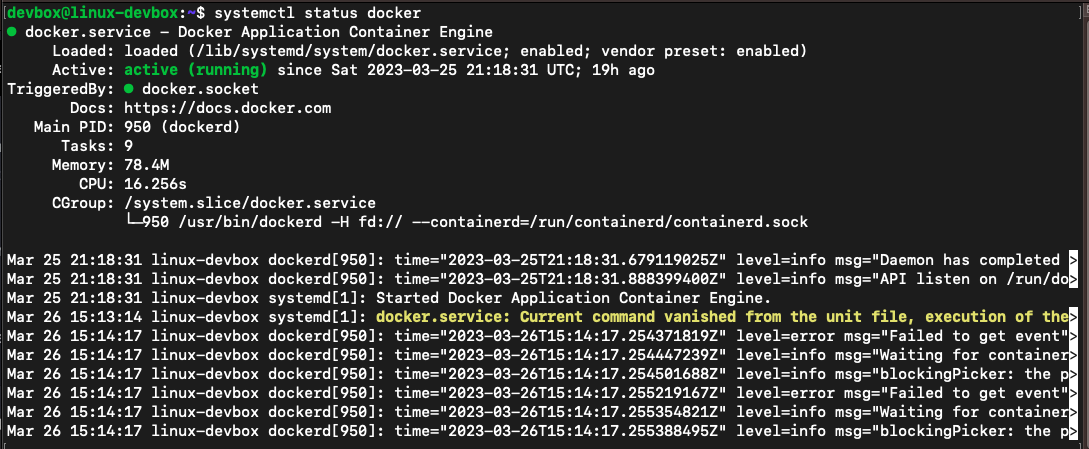
- Checking the status of the Docker service
The command used to check the status of the docker
systemctl status docker
Output
Task 2: Stopping Jenkins service and providing screenshots
- Before Stopping Jenkins Service Screenshot

- After Stopping Jenkins Service screenshot

Task 3: The commands systemctl vs service
systemctl and service are commands used in Linux to manage system services. However, systemctl is newer and more powerful and is used in modern Linux distributions that use the systemd system and service manager. service, on the other hand, is an older and simpler command that is used in Linux distributions that use the older System V init system.
systemctl status jenkinsservice jenkins status