AWS IAM (Identity Access Management)

I am familiar with Python, Java, Aws, Docker, Kubernetes, Terraform, CI/CD pipelines.
IAM (Identity Access Management) is a single AWS account that lets Root users manage all the users in the environment or the team. IAM helps with authorization and Authentication Access for the team. We can have different permissions and different groups with permission to manage the users.
Note: The user can create an IAM account with the same email as the one used to log in to the AWS Console Account. The user must switch from Root to IAM at the login window.

Once Logged in Navigate to the Search bar and Type IAM or Identity Access Management
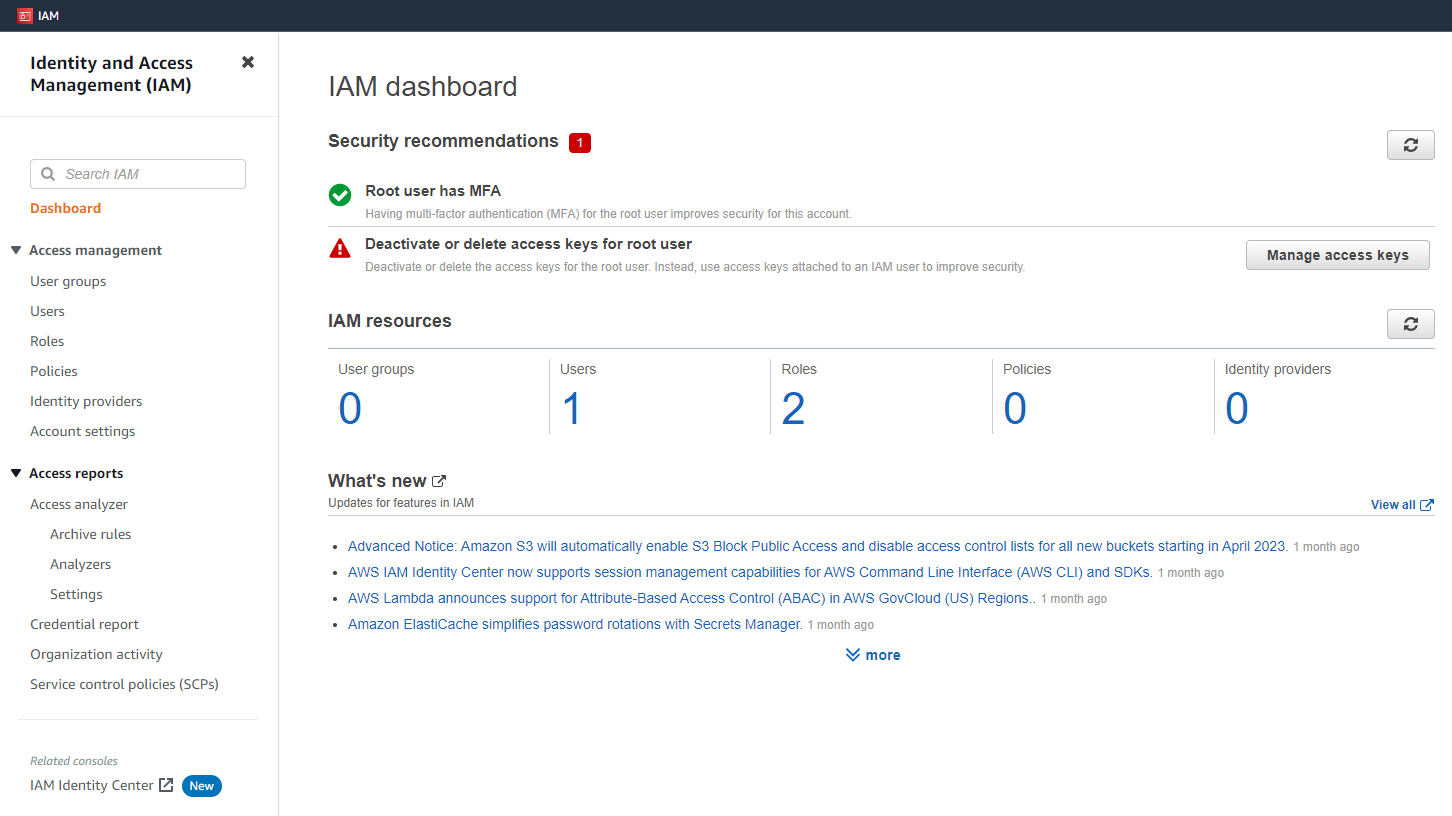
The user will be presented with the following dashboard, where users, groups, policies and etc can be managed.
How to create Users in IAM
Users are known as entities, the purpose of creating users is to give the team or the environment access to the services in AWS. We can manage the users with the help of IAM.
Click Users under Access management
Click on Add Users

- Add user name, under Set user details.
(U1 is for demonstration purposes)
The user will have two ways to provide the access to the U1,
Access Key - Programmatic Access (User will connect using CLI, SDK, and other development tools to connect)
Password - AWS Management Console Access (users will log in using AWS web console)
Let's use Password - AWS Management console access.

We can Add a user to the Group here or create a group for the user if it doesn't already exist.
We can copy permissions from the existing user
We can attach existing policies here as well
We will just create a user at this time.
Click on Next: Tags Button

Add tags is optional and it is used to organize, track and control access for the user. It could be the user's email, description, or job title.
Click on the Next: Review button, to continue

- The user should Review all the inputted information and Click Create User.

- A user account will be created, You can either download the CSV and share it with the users successfully or Email the CSV file to the user.
Creating Groups in IAM
A Group is known as an identity that has all the IAM
users in a single environment. The groups are used to specify the permissions for multiple users. The groups make permission to manage and apply to multiple users.
To Create Groups Navigate to the left panel, under Access Management.
Click on User groups.

Give the group a specific name (ec2-access)
You can also add users to the group, but it doesn’t have to be now.

Under Attach permission policies, there are many permissions to choose from, we need to create a group for users to give only read-only permissions.
Select AmazonGlacierReadOnlyAccess
Click Create Group

- The group ecs-access is created under the group with the defined permissions.
